Show day
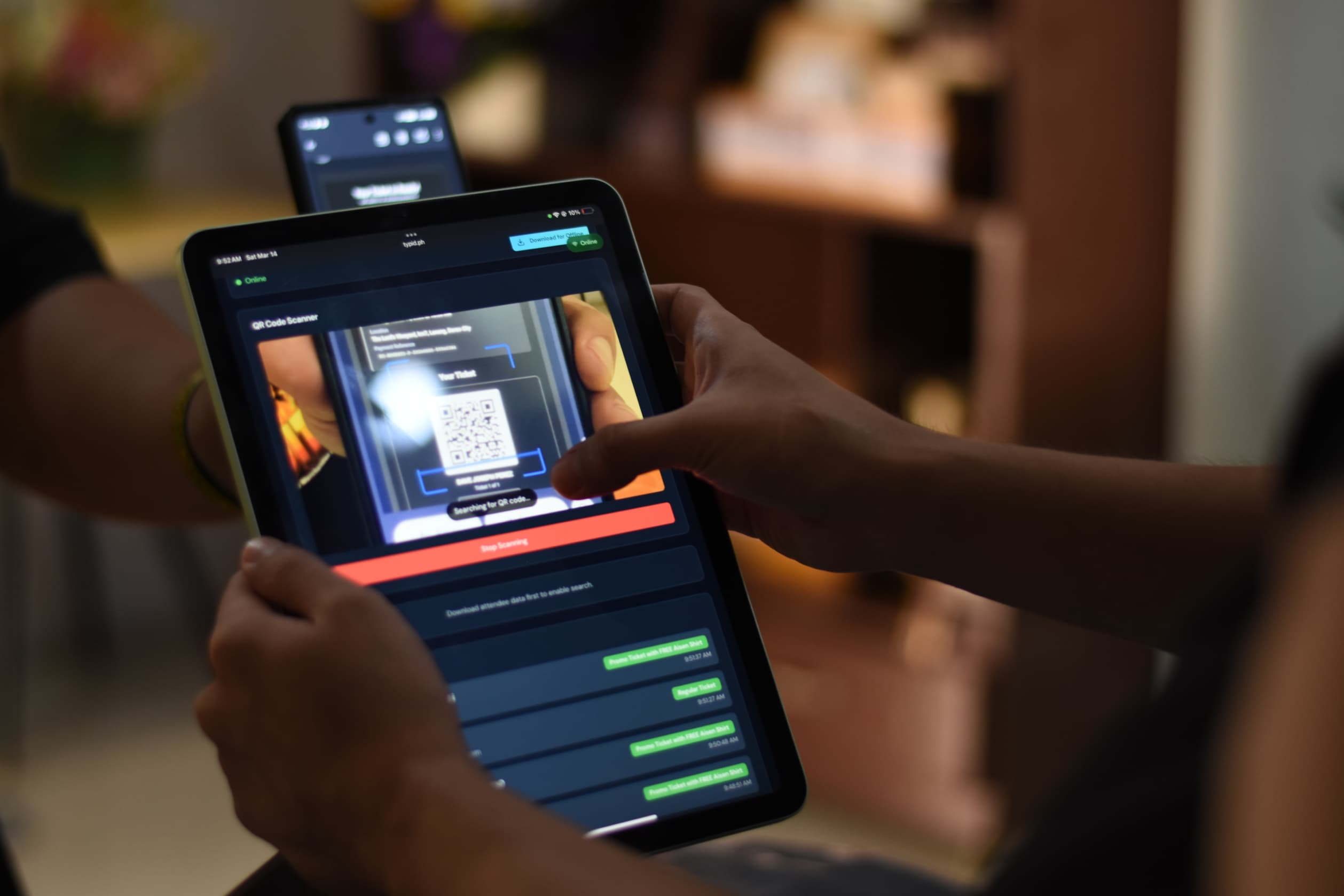
Check-in overview
On event day, open Scan QR from the event side panel (or the floating button on mobile). Each ticket has a unique QR code. Valid tickets are confirmed instantly and marked checked in.
- Click Start Scanning and point the camera at the attendee’s ticket (phone or print).
- If the camera cannot read the code, use Search Attendee (download attendee data first).
- On Check-In Setup, use Offline Mode and Download for Offline if you expect a weak venue signal.
Search check-in by name
On check-in, use Search Attendee. Search by name, email, or reference. You must tap Download for Offline first (Download attendee data first to enable search.). Mark the person checked in without scanning. This is useful for damaged codes, dead phones, or printed tickets that will not scan.
Offline check-in
On Check-In Setup, the Offline Mode card lets you Download for Offline (or Refresh) while you still have WiFi. The device caches attendees. If the connection drops, scanning still works; pending check-ins show Will sync when online and sync when you are back.
If you have not downloaded yet and the network fails: No internet connection. Download attendee data from the setup page to scan offline.
Volunteer check-in
Click Share volunteer check-in QR. Anyone with the link can check people in on their own phone for the next 2 hours, without a Typid login. They should open it once with WiFi to enable offline scanning. Share only with trusted staff. There is no revoke button, so generate a new QR when the old one expires. Banner on the guest page: Volunteer scanner — this link only opens check-in for this event.
Raffle draw
Open the Raffle tab on the event Dashboard to see winners. Click Raffle Draw to open the wheel. Choose the pool: All Attendees, Checked-In, or Ticket Holders. Click Spin! Keep Exclude winners on so past winners are not drawn again. Save unsaved winners if prompted.
Day-of troubleshooting
- Camera will not start: allow camera permission, then tap Start Scanning again.
- QR will not scan: use Search Attendee (download attendee data first).
- No internet: Download for Offline on Check-In Setup before doors.
- Volunteer link expired: generate a new Share volunteer check-in QR (links last 2 hours; there is no revoke).
- Payment not complete: the QR belongs to an order that is not Complete yet. Check Transactions.
- Wrong event: This QR code does not belong to this event. Confirm you opened Scan QR for the right event.